Blocking Acquisition Cost Updates
There are two preferences for blocking acquisition cost updates. One exists in the Supplier Folder and controls whether acquisition costs are updated when purchase orders are reconciled. The second exists in the Drug Folder and controls whether acquisition costs are updated for the specific drug pack size.
Setting Acquisition Cost Updates From the Supplier Folder
When acquisition cost updates are blocked from the Supplier Folder, the acquisition costs for all drugs are not updated by invoice prices during purchase order reconciliation.
To block acquisition cost updates when purchase orders are reconciled:
-
Select More > Supplier.
-
Search for and select your supplier. The Supplier Folder opens.
-
Select the Preferences tab.
-
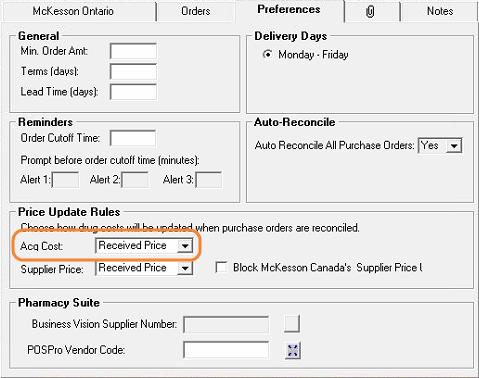
In the Price Update Rules section, dropdown the Acq Cost field and select one of the following:
-
Do Not Update - acquisition costs must be manually maintained by your store. They will not be updated automatically during purchase order reconciliation.
-
*RECOMMENDED* Received Price - acquisition costs are updated automatically with the received prices from reconciled purchase orders.
-
Retail Price - acquisition costs are updated automatically with the retail prices from reconciled purchase orders.
-
-
Select Save.
Setting Acquisition Cost Updates From the Drug Folder
When acquisition costs are blocked from the Drug Folder, the acquisition costs for the specified pack sizes are not updated by invoice prices during purchase order reconciliation.
To block acquisition cost updates for a pack size:
-
Open the Drug Folder.
-
Select the Inventory tab.
-
In the Packs Available section, highlight the applicable pack size.
-
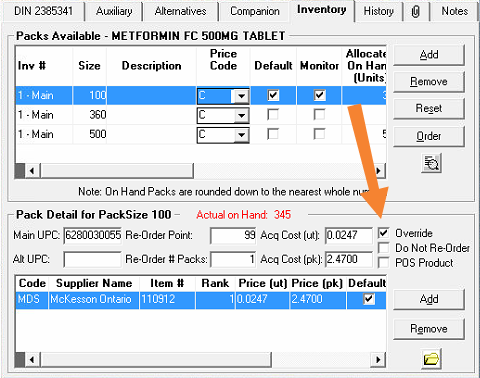
In the Pack Detail section, do one of the following:
-
If you do not want the acquisition costs to be updated, deselect the Override checkbox. Your store will be responsible for keeping the acquisition costs up to date.
-
*RECOMMENDED* If you want the acquisition costs to be updated when purchase orders are reconciled, select the Override checkbox.
-
-
Repeat steps 3 - 4 for any additional pack sizes if needed.
-
Select Save.